Using Entra Federated Credentials for Customer Tenant access
Often as a service provider, we need access to resources in customer tenancies. In this example, I want to use Vector to send logs from my environment into a Log Analytics Workspace inside a customer environment.
The easy, boring, and not-very-secure way of doing this is to either have the customer create an App Registration inside their tenancy, and provide us with a Client ID and Client Secret.
The slightly more highbrow way is for us to create the App Registration in our tenancy, and have the client consent to it. But this typically still uses a Client ID and Client Secret, which is still not great.
In this blog post, I'm going to create a Client Assertion flow to chain together different tokens, so that we can access resources in the customer tenancy, using a Managed Identity assigned to our resource. The benefit of this method is that there are no secrets we need to manage, and limited ability for an attacker to steal credentials; the application running in our tenancy uses short-lived tokens, and exchanges these for more short-lived tokens.
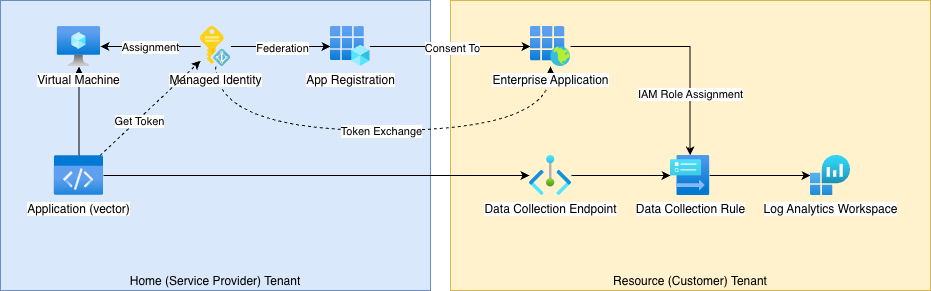
https://learn.microsoft.com/en-us/entra/workload-id/workload-identity-federation
Home Tenant: Configure our Managed Identities
First, we're going to:
- create a Virtual Machine, and enable the System Managed Identity
- create a User Assigned Managed Identity (UAMI), and assign it to our Resource (in this example, a VM)
- create an App Registration
- federate the UAMI to the App Registration
Note: Whether it's "better" to use a User-Assigned Managed Identity, or the System Managed Identity, is a principled architectural debate. I tend to err on the UAMI side, for two reasons: 1. often there will be multiple resources (different VMs) that will need to use the same credentials, either because they're recreated, or multiple instances are run in parallel (scale out), or you're staging an upgrade and want to minimise disruption; and 2. in the event of compromise, the malware running on the trusted host needs to know the UAMI UUID, which adds some delay, and additional steps.
But it's literally the same steps to use either.
To start, we need to create a VM. But creating a VM is boring, so I'll let you imagine how to do that, and skip onto:
Ceate a User Assigned Managed Identity (UAMI), and assign it to our Resource
This is still pretty simple. First browse to Managed Identities, hit Create, and fill in the names you'd like to use.
Once created, go back to your VM, in the left-hand pane navigate to Identities, switch to the User-assigned tab, and then click Add.
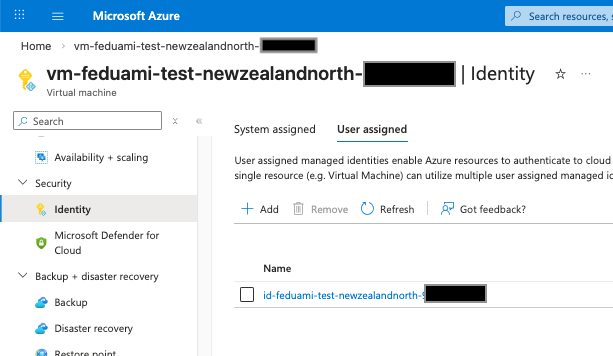
Once created, make a note of the Client ID. We'll be using this as the ${UAMI_CLIENT_ID} variable later.
Create an App Registration
This is still the usual steps. Go to Entra ID > App Registrations, and follow the usual steps.
Note that:
- The display name will be what the customer sees, so make it a good one (not the template I've used below)
- You need to select Multiple Entra ID tenants, or customers won't be able to consent.
- The Redirect URI will be the landing page customers end on. Ideally you should check the token, but literally a static page with a "Well done!" message is fine.
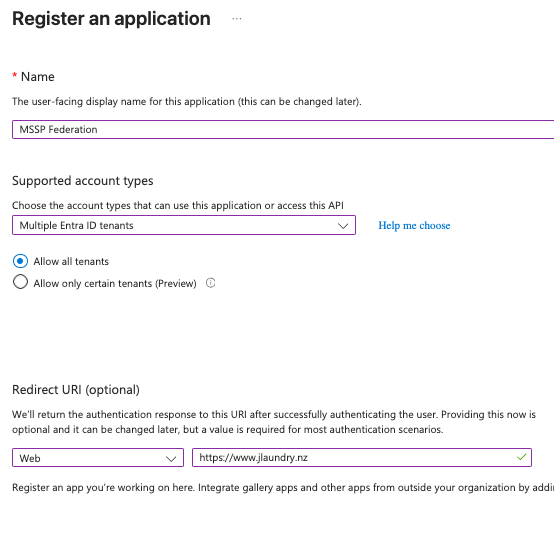
Once created, make a note of the Client ID. We'll be using this as the ${APP_CLIENT_ID} variable later.
Federate the UAMI to the App Registration
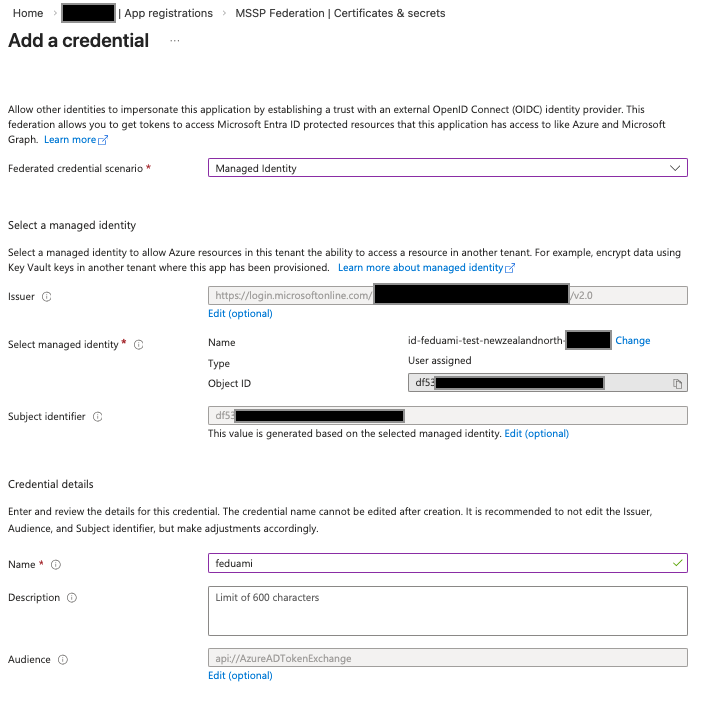
Next, go to the App Registration's Certificates & secrets, and the Federated credentials tab, and click Add.
Follow the UI to select the UAMI you created earlier:
Resource Tenant: Consent and assign IAM roles
Now the Home Tenant is ready, we're going to:
- Consent to the Enterprise Application
- Add Azure IAM Roles to the App
First we need to construct the URL, using the template:
https://login.microsoftonline.com/common/adminconsent?client_id={APP_CLIENT_ID}
You'll find the Application (client) ID on the App Registration overview page in your Home tenant.
Simply provide that URL to your customer, or open a browser in the Resource tenant, and follow the prompt to consent.
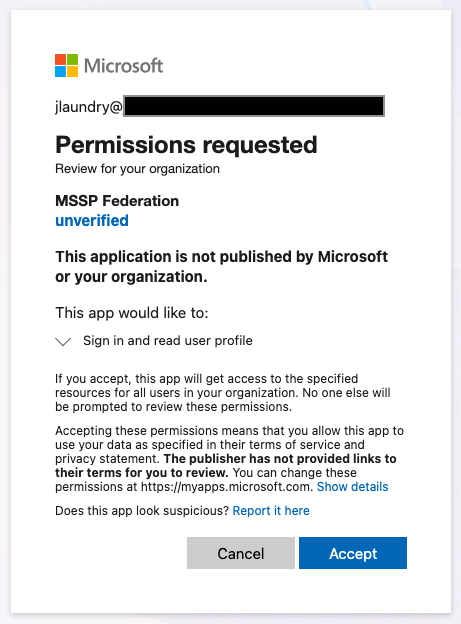
If successful, the user will be redirected to your landing page.
Note: If your customer has multiple tenants, and you want to make sure they consent in the right one, you can replace
commonwith their organisation ID or domain name.
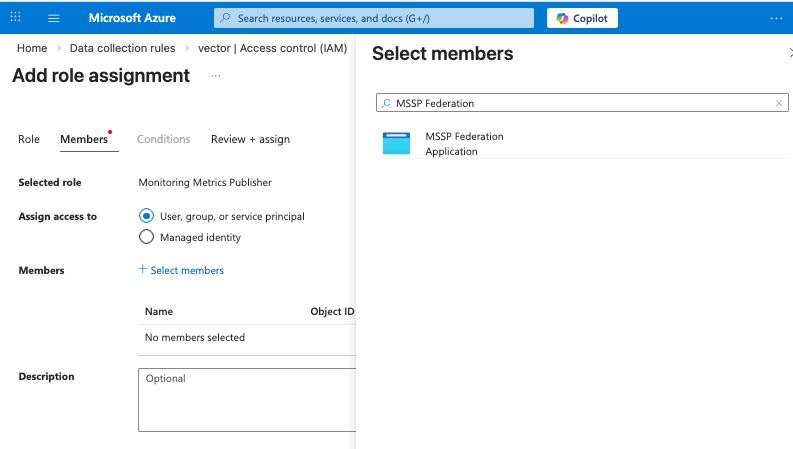
The final step is to add the IAM Permissions to the Application. In our case we've already got a Data Collection Rule configured, so we just need to add the Monitoring Metrics Publisher role.
The final step is to configure the application (Vector) to use the managed identity:
  az:
    type: azure_logs_ingestion
    inputs:
      - azurify
    endpoint: https://vector-0000.westus2-1.ingest.monitor.azure.com
    dcr_immutable_id: dcr-00000000000000000000000000000000
    stream_name: Custom-vector_CL
    auth:
      azure_credential_kind: managedidentityclientassertion
      user_assigned_managed_identity_id: ${UAMI_CLIENT_ID}
      client_assertion_tenant_id: ${RESOURCE_TENANT_ID}
      client_assertion_client_id: ${APP_CLIENT_ID}
How does this work?
There's a lot of magic in how this works, and good security people don't like magic. Let's step through it on the command line, to see how and why this works.
First, every Azure VM (or App Service, or Function, or other server that's been onboarded with Azure Arc) has a service called the Instance Metadata Service (IMDS), which provides information about the infra:
jlaundry@vm:~$ curl -s -H "Metadata: true" "http://169.254.169.254/metadata/instance?api-version=2025-04-07" | jq .
{
  "compute": {
    "additionalCapabilities": {
      "hibernationEnabled": "false"
    },
    "azEnvironment": "AzurePublicCloud",
    "isHostCompatibilityLayerVm": "true",
    "isVmInStandbyPool": "",
    "licenseType": "",
    "location": "NewZealandNorth",
    "name": "vm-feduami-test-newzealandnorth-00000000",
    "offer": "ubuntu-24_04-lts",
On Azure native infra, the IMDS accepts requests on http://169.254.169.254:80. On Azure Arc connected virtual machines, it's http://localhost:40342 - on Arc'd machines the IMDS_ENDPOINT environment variable should be set with this address (but sometimes it isn't).
One of the features of the IMDS is to get Access Tokens, for applications to use to access further resources using the assigned Identities. So first, we use the IMDS to get an access token for our Managed Identity:
# Client ID of the Identity
# This can be either the System Assigned Identity, or User-Assigned Managed Identity
# If using the System Assigned Identity, it can be omitted completely
UAMI_CLIENT_ID=00000000-0000-0000-0000-000000000000

# Retrieve the access token from the IMDS
msi_access_token=$(curl -s -H "Metadata: true" --get "http://169.254.169.254/metadata/identity/oauth2/token" \
-d "api-version=2019-08-01" \
-d "client_id=$UAMI_CLIENT_ID" \
-d "resource=api://AzureADTokenExchange" \
| jq -r .access_token)

echo "MSI Access Token:"
echo $msi_access_token | cut -d'.' -f2 | base64 -d | jq .
Now we have an access token for our Managed Identity, we can exchange that for an access token for the App Registration:
# Client and Tenant ID of the App Registration (home tenant)
APP_CLIENT_ID=00000000-0000-0000-0000-000000000000
HOME_TENANT_ID=00000000-0000-0000-0000-000000000000

app_access_token=$(curl -s -X POST "https://login.microsoftonline.com/${HOME_TENANT_ID}/oauth2/v2.0/token" \
-d "client_assertion_type=urn:ietf:params:oauth:client-assertion-type:jwt-bearer" \
-d "client_assertion=$msi_access_token" \
-d "client_id=$APP_CLIENT_ID" \
-d "grant_type=client_credentials" \
-d "scope=https://graph.microsoft.com/.default" \
| jq -r .access_token)

echo "App Access Token:"
echo $app_access_token | cut -d'.' -f2 | base64 -d | jq .
Finally, it's time to exchange that for an access token in the resource tenant, so that we can use the Enterprise Application's assigned IAM Roles:
RESOURCE_TENANT_ID="example.onmicrosoft.com"

resource_access_token=$(curl -s -X POST "https://login.microsoftonline.com/${RESOURCE_TENANT_ID}/oauth2/v2.0/token" \
-d "client_assertion_type=urn:ietf:params:oauth:client-assertion-type:jwt-bearer" \
-d "client_assertion=$msi_access_token" \
-d "client_id=$APP_CLIENT_ID" \
-d "grant_type=client_credentials" \
-d "scope=https://management.azure.com/.default" \
| jq -r .access_token)

echo "Resource Access Token:"
echo $resource_access_token | cut -d'.' -f2 | base64 -d | jq .
And to test it, we're going to try getting the details of one of our customer's resources. If the App was assigned the Reader role, this should work:
curl --get https://management.azure.com/subscriptions/00000000-0000-0000-0000-000000000000/resourceGroups/rg-logingestionapi-test-westus2/providers/Microsoft.Insights/dataCollectionRules/vector -H "Authorization: Bearer $resource_access_token" -d "api-version=2020-06-01"